About WP2
🔍 What is WP2?
WP2 (Working Paper Populator) is a comprehensive automation tool designed to streamline UIF TERS claim verification processes at RBR Group. The application automates the generation of standardized working papers by extracting data from Excel files and populating templates, significantly reducing manual effort and ensuring consistency in documentation.

RBR Group
Automation Suite
RBR Group faced significant challenges with manual UIF TERS claim processing, including time-consuming documentation, inconsistent formatting, and high error rates. WP2 solved these problems by automating data extraction, standardizing working papers, and reducing processing time by 80%, while ensuring compliance with regulatory requirements. The solution has revolutionized RBR's workflow, enabling consultants to focus on high-value analysis rather than repetitive paperwork, resulting in improved client satisfaction and scalable business operations.
WP2 Tools Suite
Below is a comprehensive overview of the tools shipped with WP2. Each tool is designed to handle specific aspects of the UIF TERS claim verification process.
📄 Single File Processing
Process one UIF TERS claim file at a time with detailed analysis and working paper generation. Perfect for focused review and quality control.
📚 Multiple File Processing
Batch‑process several UIF TERS claim files and generate working papers with summary results. Ideal for high-volume processing periods.
📂 Finding Report Path Populator
Match UIF reference numbers and auto‑populate report paths in Excel mail merge sheets. Streamlines report organization and filing.
📌 Verification Report Generator
Generate verification reports from templates and Excel data. Ensures consistent formatting and comprehensive documentation.
📊 DataFile Extractor
Extract and transform data from UIF TERS Excel files into standardized formats. Facilitates data analysis and reporting.
Screenshot Gallery
Get a visual overview of WP2's intuitive interface and powerful features.
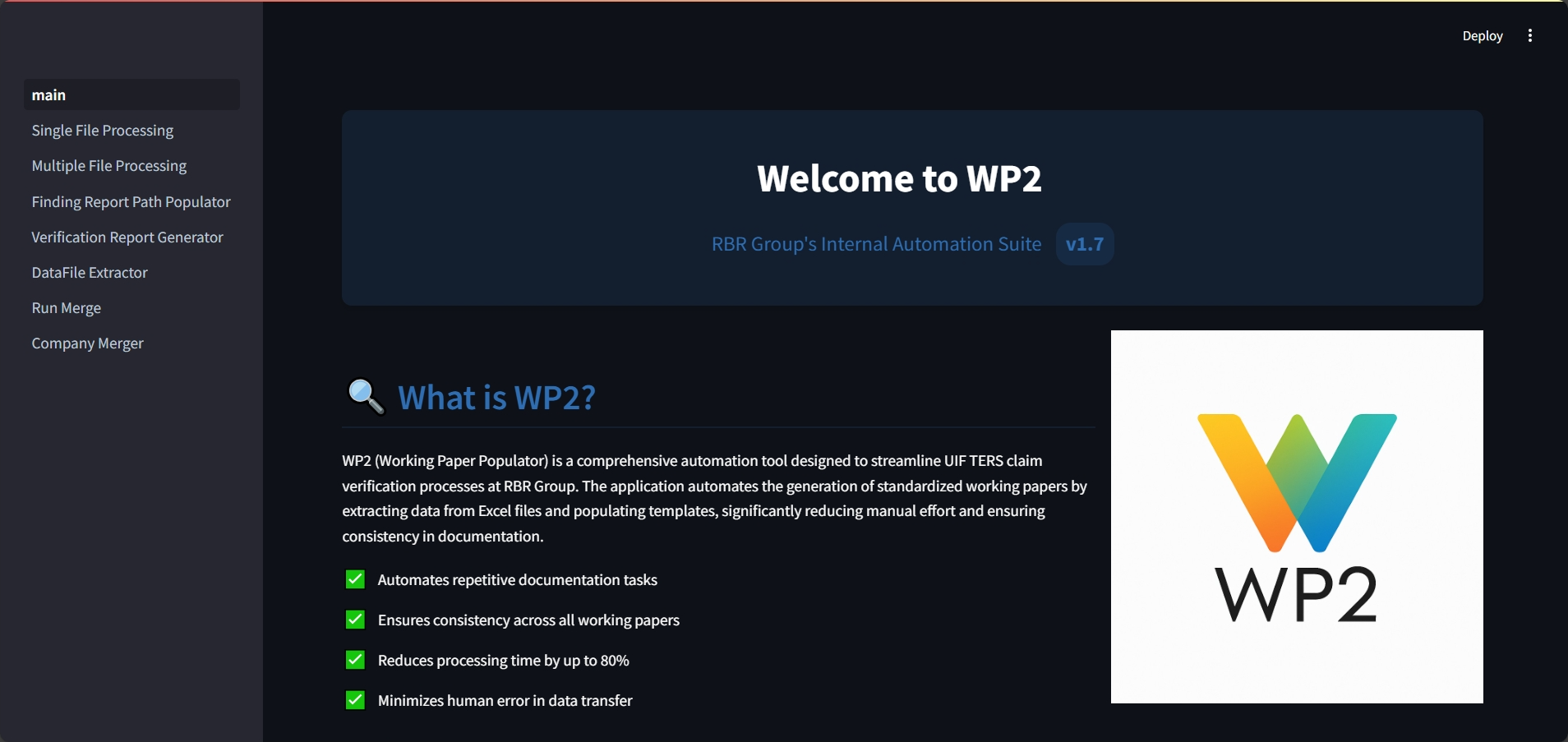
Main Dashboard
Clean and intuitive main interface with easy access to all tools and features.
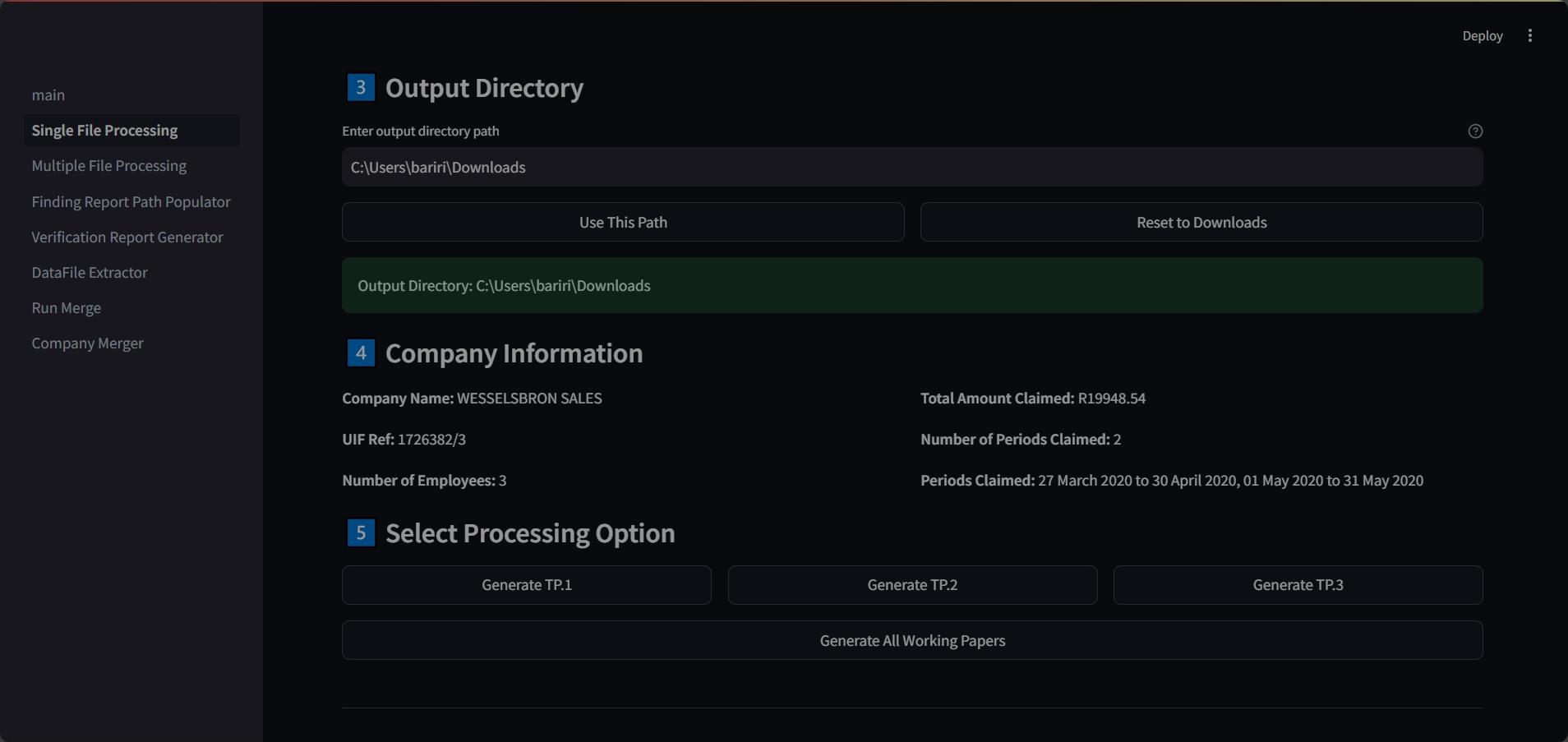
Single File Processing
Step-by-step workflow for processing individual files with detailed validation.
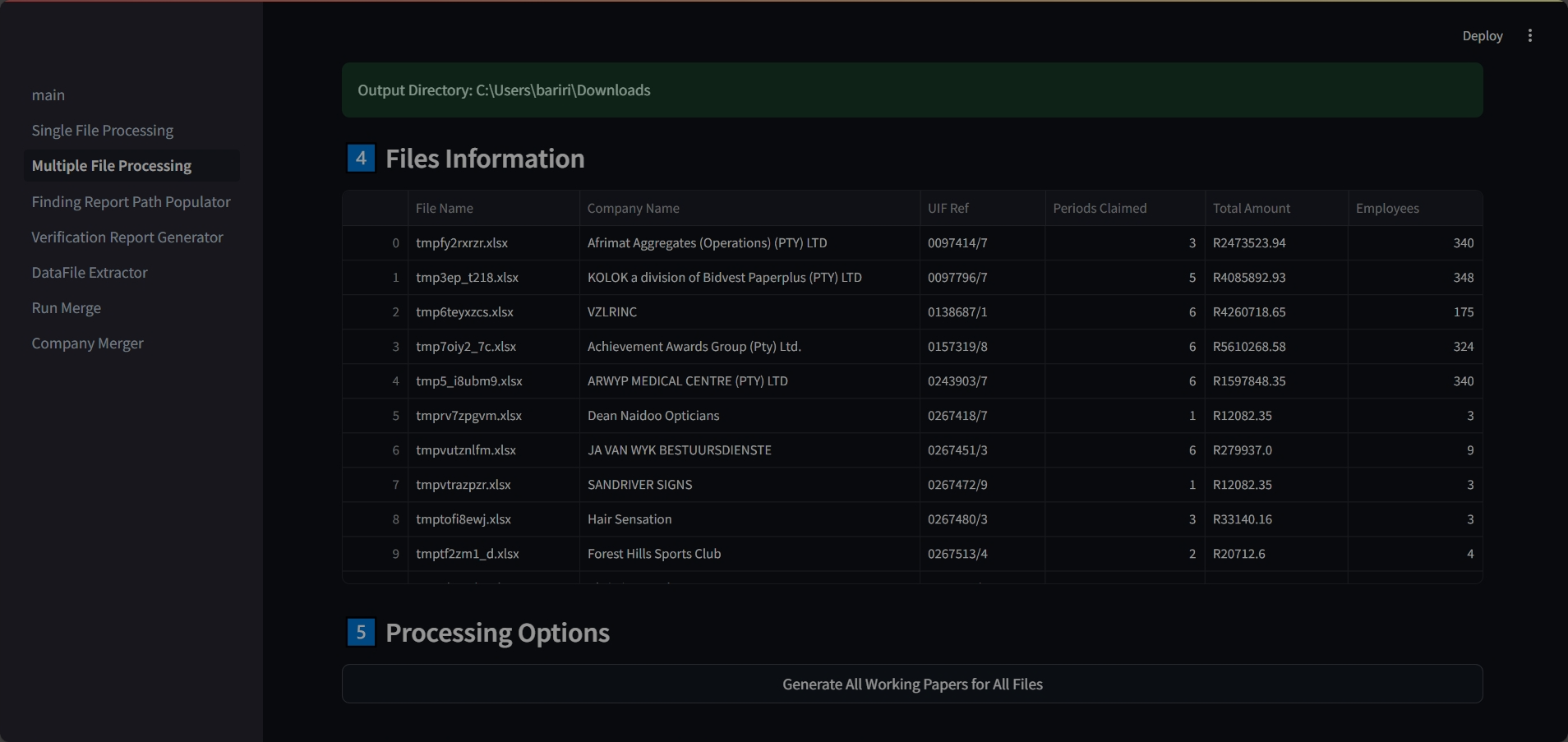
Multiple File Processing
Efficient batch processing capability for handling multiple files simultaneously.
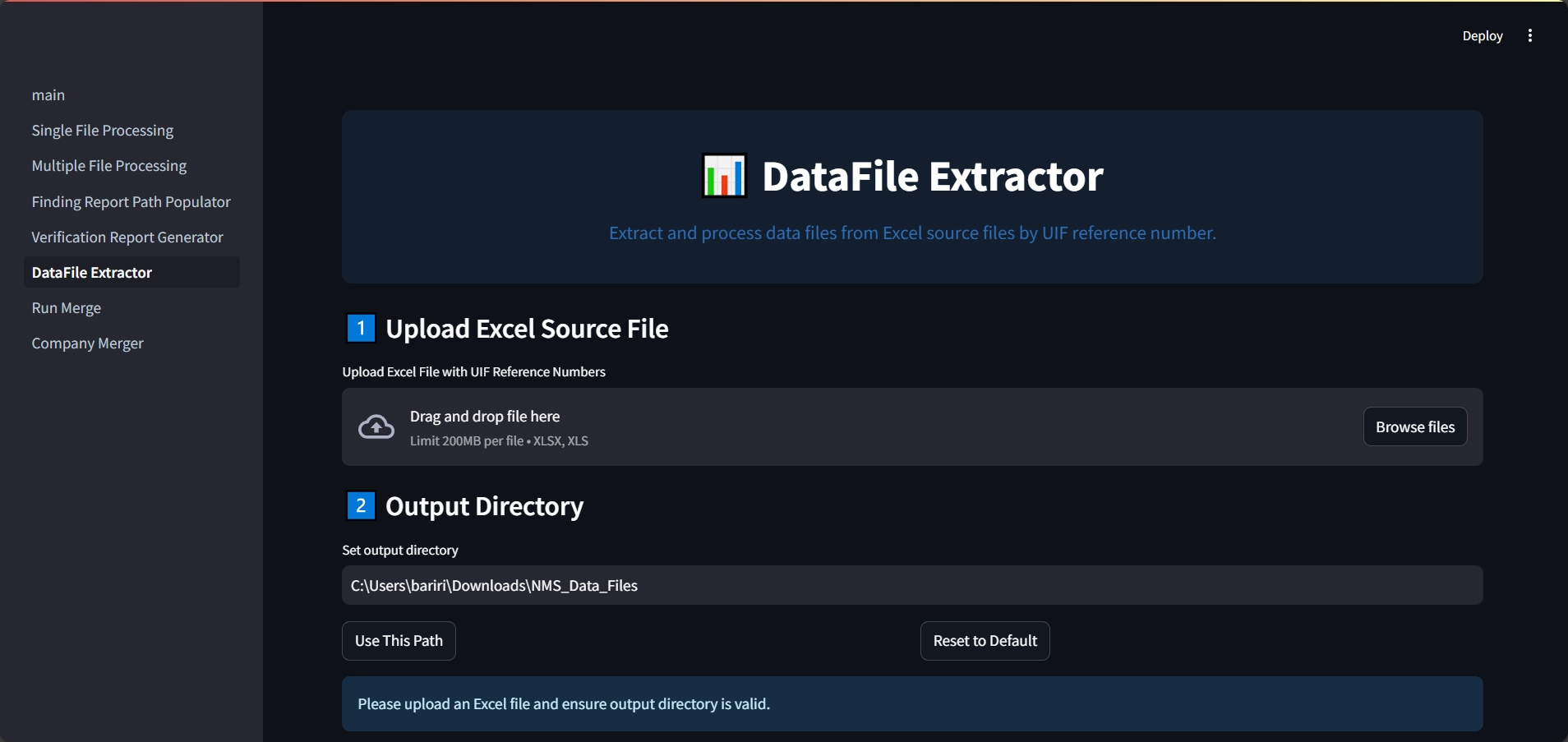
Data Extraction Tool
Powerful data extraction capabilities with customizable parsing options.

Finding Path Populator
Advanced path discovery and mapping for efficient file navigation.
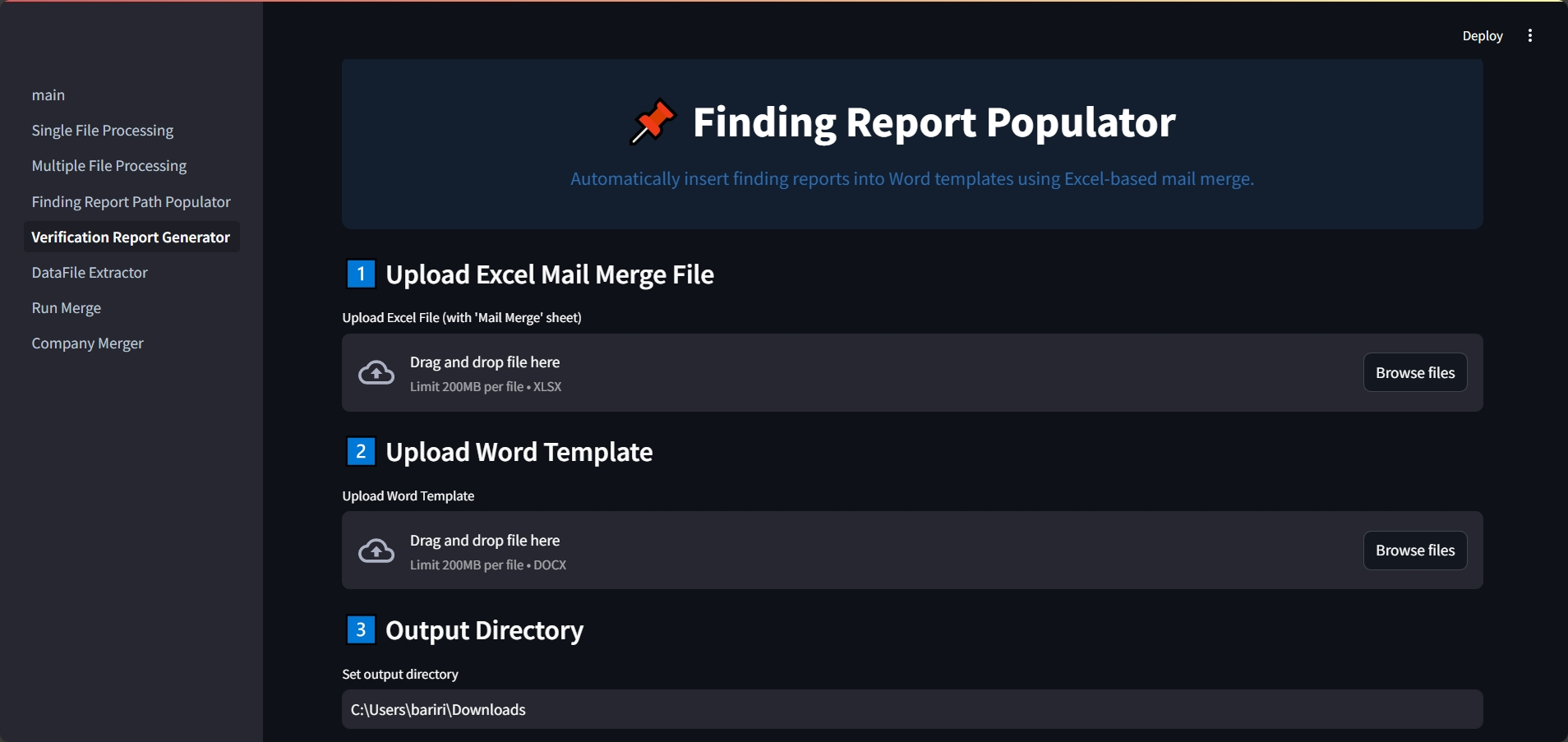
Verification Report Creator
Comprehensive report generation with validation and error checking.
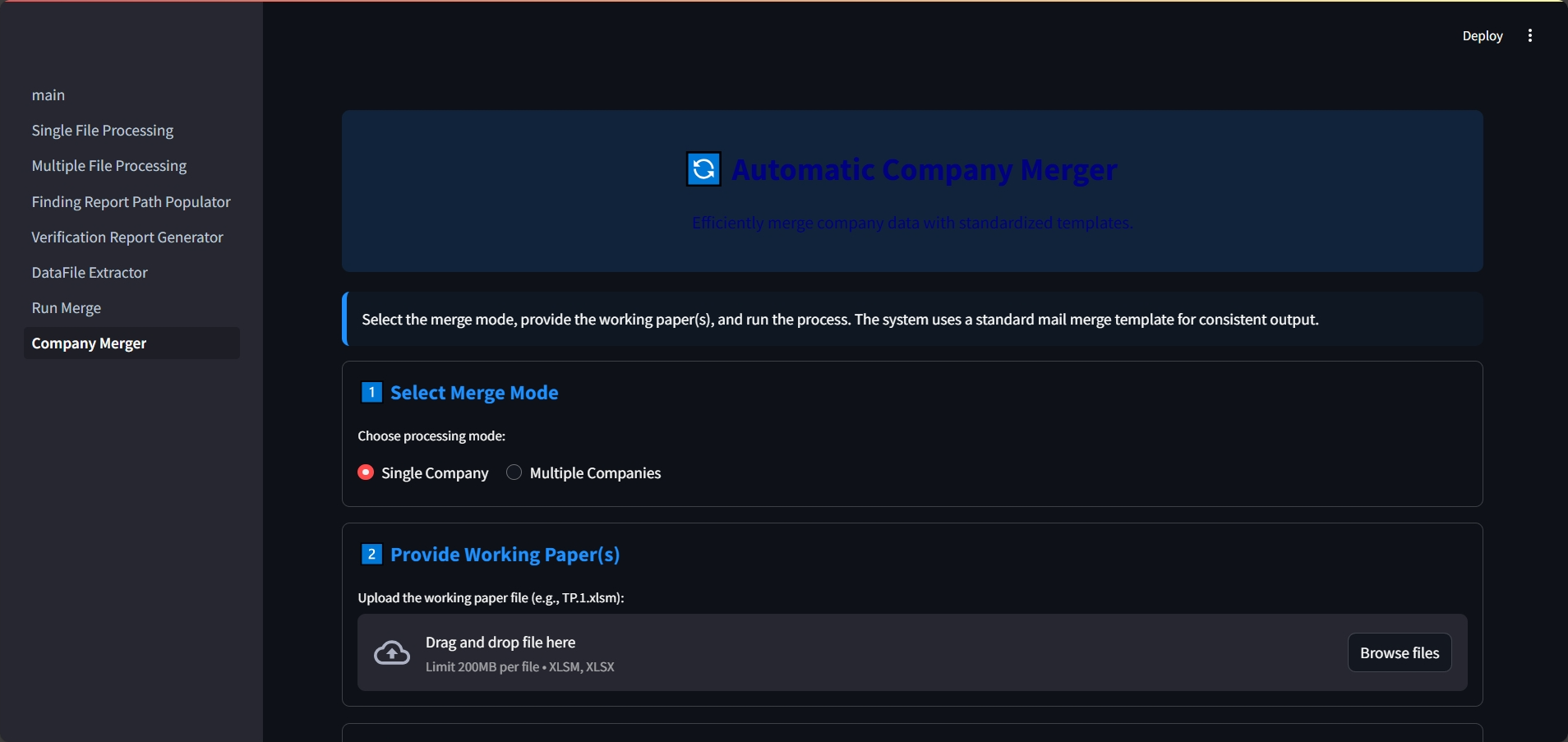
Automatic Merge Tool
Intelligently merge data from multiple sources with conflict resolution capabilities.
Workflow Guide
Follow these step-by-step workflows to get the most out of each WP2 tool.
Tips & Best Practices
🔄 Data Preparation
- Ensure Excel files are not password‑protected
- Verify all required columns are present and properly formatted
- Close Excel applications before uploading files
- Use standard UIF TERS format for best results
- Remove any merged cells or complex formatting
📁 File Management
- Use descriptive and consistent file naming conventions
- Create dedicated output folders for each project
- Generated files follow standardized naming patterns
- Regularly back up important working papers
- Organize files by date and client for easy retrieval
⚡ Performance Optimization
- Process large batches during off‑peak hours
- Keep individual Excel files under 10 MB for optimal speed
- Close unnecessary applications when processing
- Use Multiple File Processing for similar file types
- Monitor system resources during batch operations
🔍 Troubleshooting
- Verify data format if processing fails unexpectedly
- Ensure all required template files are present
- Refresh browser for minor UI issues
- Check file permissions for output directories
- Contact IT support for persistent technical issues